Affinity for Board Games
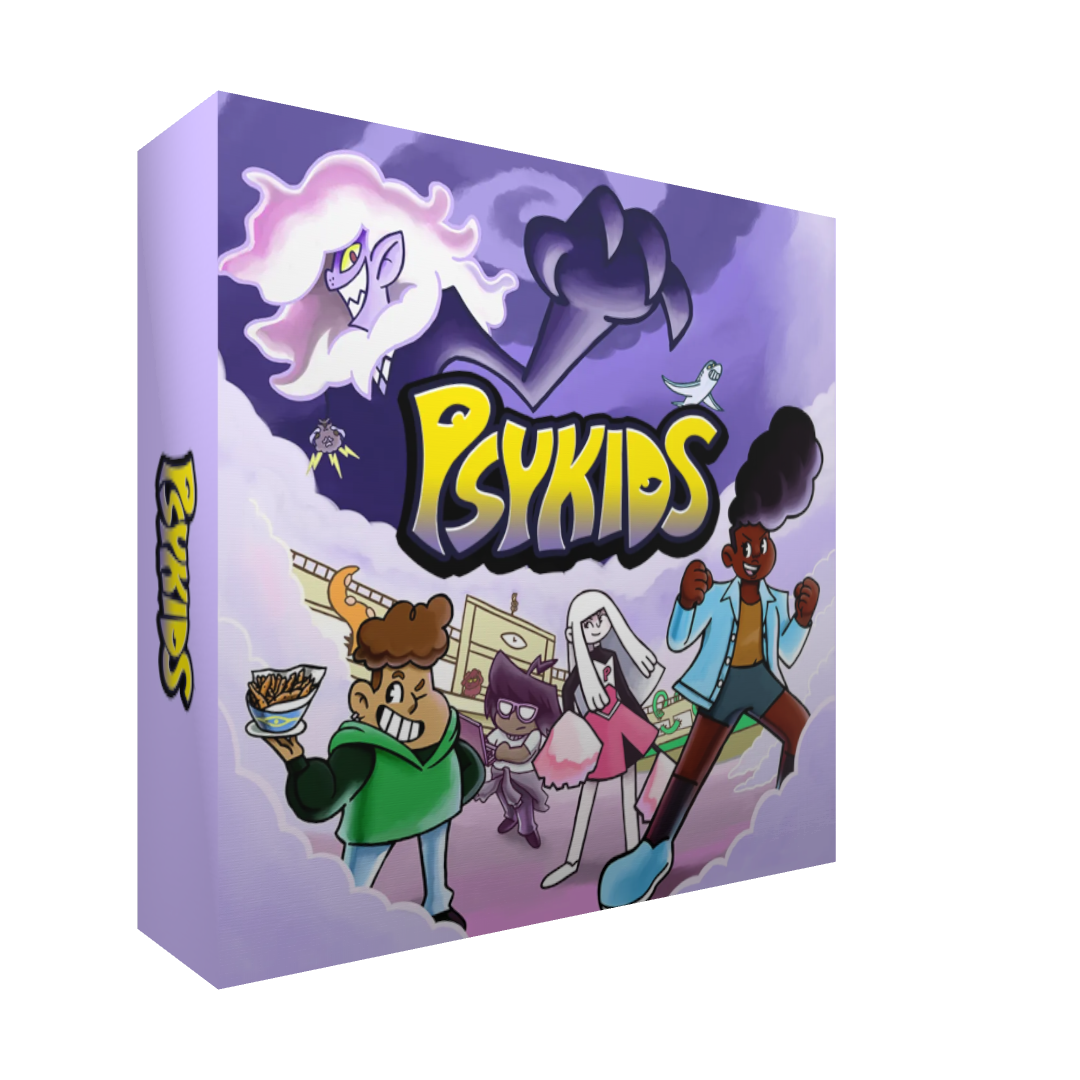
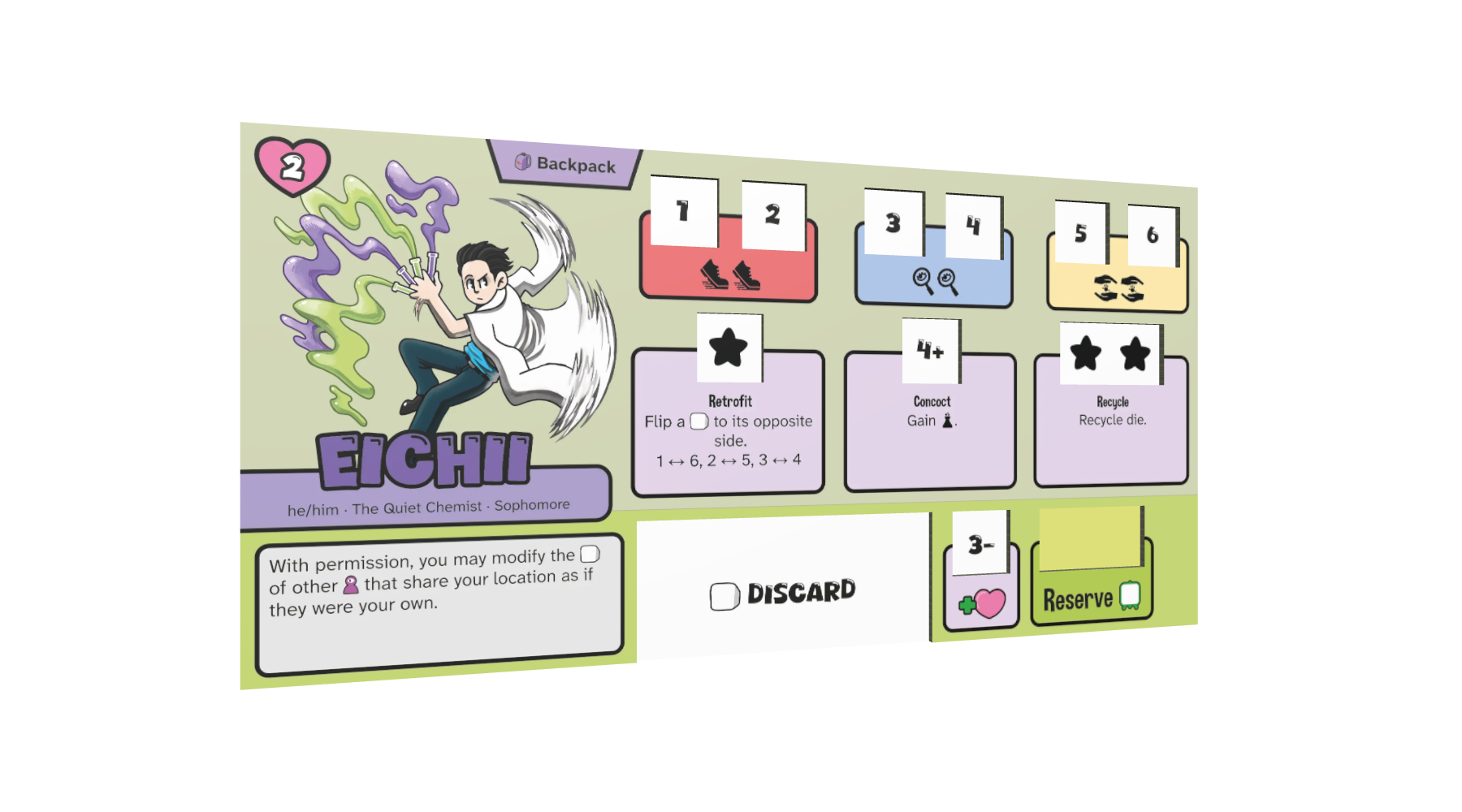
I’ve used the graphic design software Affinity for board game prototyping since the V2 days. Now that it’s free, I wanted to share what I wish I had known earlier. Examples are from Psykids, which I’m codesigning with Kekoa DeRego.
For board game prototypes, the main priority is efficiency of iteration, especially in regards to your icons and rulebook updates.
Icons (and other images)
Board game icons need to change often during development, and when they do, you don’t want to have to manually replace them across all of your documents. Luckily, Affinity gives you a nice method to automatically keep your iconography up-to-date. My approach is:
Create one Artboard document for all of your icons.
Use Symbols inside your icon document.
Link to the icon document from all your other files.
Artboards
An artboard is a second canvas inside of the same document. This allows you to edit your icons side-by-side but import them separately to other documents.
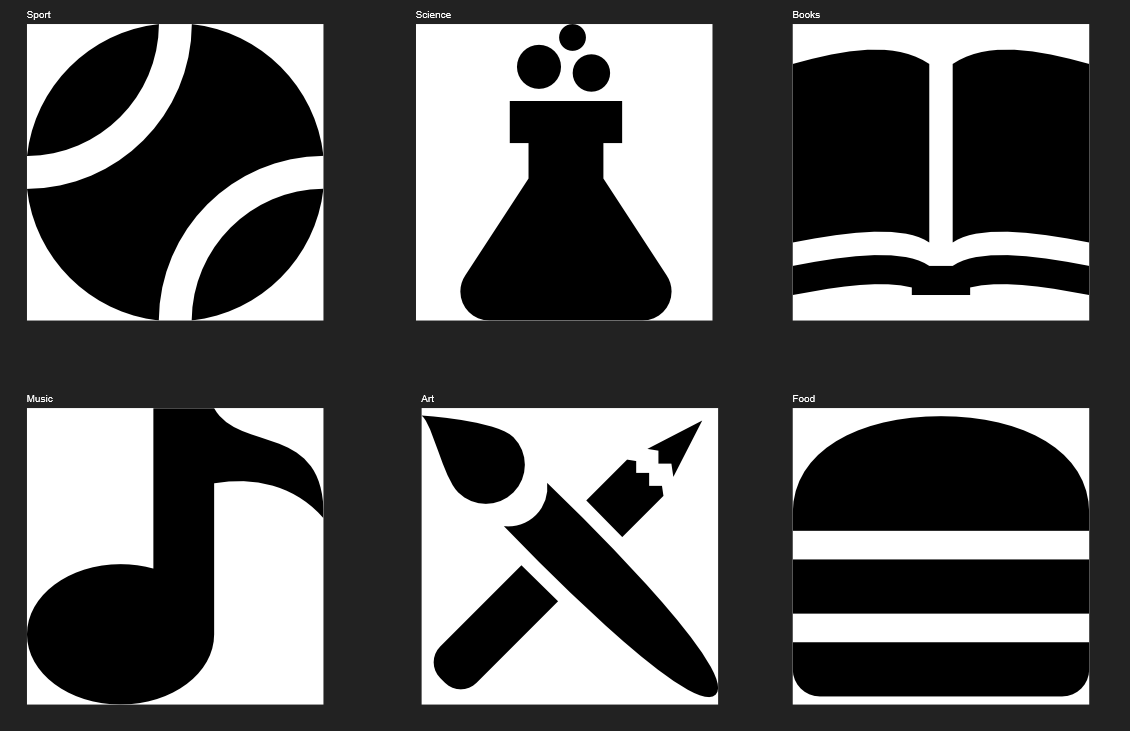
When creating a new document (Affinity file), you can mark it to use artboards, but this is unnecessary, as you can add an artboard to any single-page document using the artboard tool. See adding & removing artboards.
Symbols
Symbols are elements that synchronize changes across all instances of the symbol, so when you edit one, they all get the edit. This is useful for reusing elements in several icons. For example, Psykids uses a “wild die” symbol in dozens of icons.

If I need to change the look of this wild die, I can edit any instance of it and Affinity will automatically copy that change to all other instances.
You can access the symbols panel in Windows > Vector > Symbols. Note that the panel lets you temporarily disable syncing so that you can edit a single instance of a symbol if you need to.
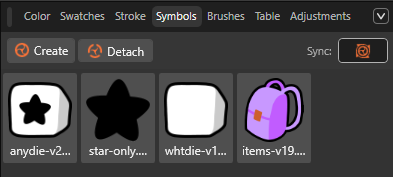
Symbols only work inside one document, however. If you want to synchronize changes across documents, you need to link them.
Placing & Linking
To place an artboard, use the place tool to “place” the whole document. When you place a document that contains artboards, Affinity gives you a dropdown in the top left corner to select which artboard to use.

Placed resources like artboards can be linked or embedded. You want to link them. Linking maintains a connection between the documents so that changes to your source documents propagate automatically. When creating a new document, make sure to switch the Image placement option to Prefer Linked. Placed images (and documents) will be linked by default.
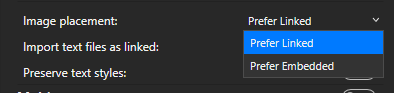
If you forget, you can change this option in Document Setup later and change any embedded resources to linked using the resource manager.
The Resource Manager
You can find the resource manager panel under Document > Resource Manager…
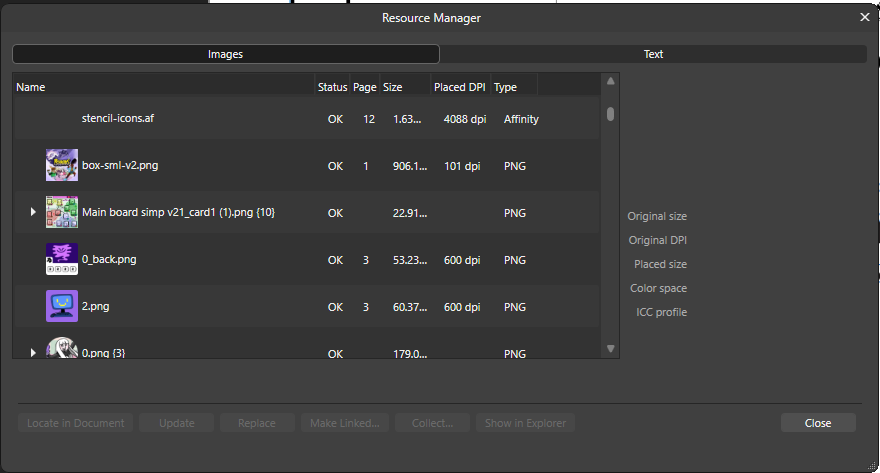
As its name implies, the resource manager lets you manage your imported resources, including placed documents. Here you can switch between linked and embedded, update images, and replace them.
A note on cloud-sync
If you share files with a co-designer or developer using a cloud service like Google Drive, make sure to only import resources that are either in the same directory (folder) or a subdirectory of your target document. Otherwise the linked resources will break.
Our shared folder for Psykids has roughly this structure:
Psykids/
  rulebook.af
  icons.af
  cards/
    card-1.png
    card-2.png
Icons in text
There are two ways to use icons with text: inline, and floating.
Inline icons
An inline icon sits in the text like an emoji. To do this, either use the place tool with your cursor in your text, or just copy and paste an image into your text.

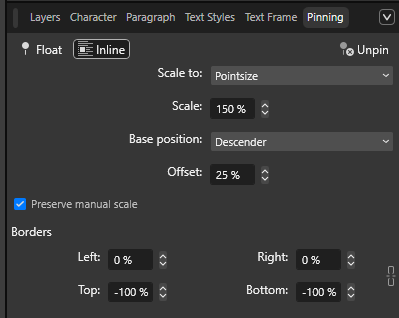
To position it correctly, use the pinning panel. It lets you set the height and vertical alignment of an icon, which will carry over into any new icons you add. My favorite settings are as follows:
- Scale To: Pointsize. The icon will scale with the text.
- Scale: 130%. Make it slightly bigger than the text.
- Base position: Descender. Position it lower on the line.
- Offset: 15%. Correct for the increased scale.
- Borders: -100% on the Top and Bottom. This prevents the icons from affecting the line-height.
I find that the best offset is half the excess scale, so (130% - 100%) / 2 = 15%. This is because icons scale up from below, so putting half the added scale in the offset balances that increased size above and below the line of text.
Floating icons
A floating icon exists outside of the text but moves relative to an anchor in the text. This is useful when an icon needs to span multiple lines. To do this, start by placing the icon on top of (but not in) some text. Then, with the icon selected, open up the Text > Text Wrap settings to make the text wrap around the image.
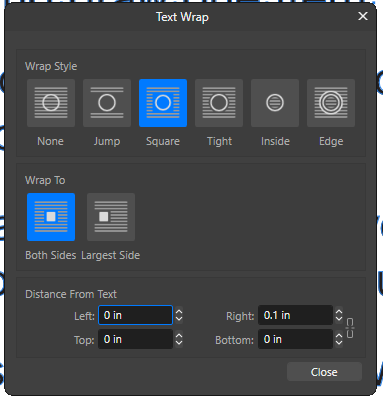
With the icon selected, click the “Float” button at the top left of the pinning panel. The icon will now reposition itself to stay near its adjacent text. Move the positioning cursor around to anchor the image to the intended text.

Slice Studio
To export artboards or any other portion of your document en masse, use the Slice studio, which you will need to enable. Studios provide different modes for Affinity, and the Slice studio is where you would name and configure multiple export files for one document.
Text & References
Similar to icons, there’s a lot of text that you don’t want to have to manually update, like the page numbers in your table of contents, but to handle these automatically, you need to properly apply text styles.
In general, you never want to style text directly. Instead, assign all text a type from the Text Styles panel. You can then update the style of a type of text en masse through the panel, rather than updating every instance of text. Text styles are then used to identify headers for a table of contents or cross references.
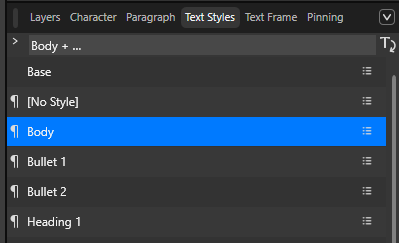
Table of Contents
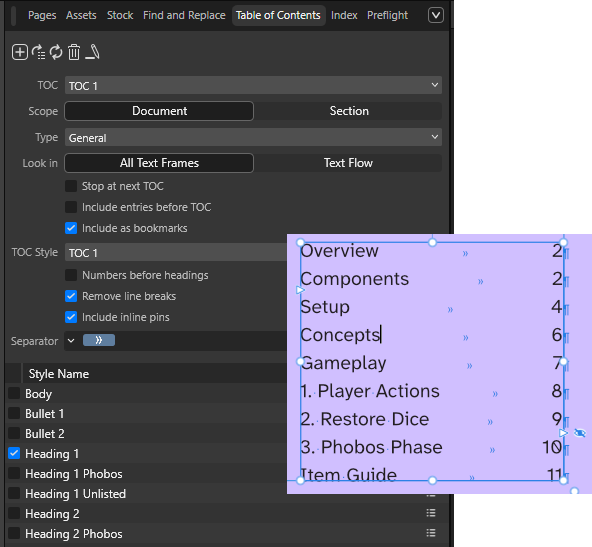
Once you’ve added some headers to your document using the text styles panel, you can create an automated table of contents (Text > Table of Contents). Affinity lets you select which types of headers to include in the list using the Table of Contents panel (Window > References > Table of Contents). Generally you’ll target your headers.
Cross References
A cross reference is when a rulebook says something like “See page 5”, which you never want to type out manually. Instead, use an automated cross reference, found under Text > Cross Reference. When assigning the target text for a cross reference, you can search by style of text, like for all headers.
Master Pages & Fields
Speaking of page numbers, you also don’t want to have to manually type out the numbers on the bottom of the pages. Instead, create a couple of master pages and add them to every page other than the cover and the back. Then, any element you add to the master pages will appear on all these other pages.
To add a dynamic element like a page number, you need to add a field to the master pages (Text > Insert > Fields). I also like using fields on the cover to add a “Saved Date” so that it’s easier to keep track of the versioning on my rulebooks.
Data Merge
Fields and master pages are also how you setup a data merge, which transforms a spreadsheet into multiple pages or a grid of similar elements. You can use this to generate cards or tokens, but I recommend using NanDeck or Dextrous for prototyping. The multi-page output is useful for generating one card or token per page, which is what you want for your final production files, and the grid output is useful for generating a grid of components for a virtual tabletop, but you have to commit to one or the other; this isn’t just an option you pick during exporting. If you only need one of these options, data merge is great, but if you find yourself doing both at the same time (like we did), other options are better.
There is much more to say on this topic, but that is an article for another time.
Units & Expressions
Board game components are almost always prepared with a specific dimension in mind. To make this easier, set your document’s “units” to millimeters or inches so that coordinates and dimensions are given in terms of their real-world proportions. Note, however, that you can edit values using any unit at any time by adding the proper suffix. For example, I can give a rectangle a 16mm width in a document set up to use inches and Affinity will convert it for me.
You can also type simple math expressions into fields and even mix and match unit types. I find this useful when dealing with margins on cards. If I need an object to span the length of a 2.5 inch poker-sized card minus 6mm for the margin on either side, I can type 2.5inch - 6mm and it will work.
Psykids
A lot of these methods were refined while developing Psykids. I’ll likely be writing about it more over the next few months. You might also be interested in my articles about Board Game Icons or Board Game Text.
If you want to be notified of my future articles, you can follow me on Bluesky or subscribe to this site’s RSS Feed (if anyone still knows what that means).